Azure Brother
Passwordless from Day One | Windows Autopilot + TAP + WHfB + Passkeys
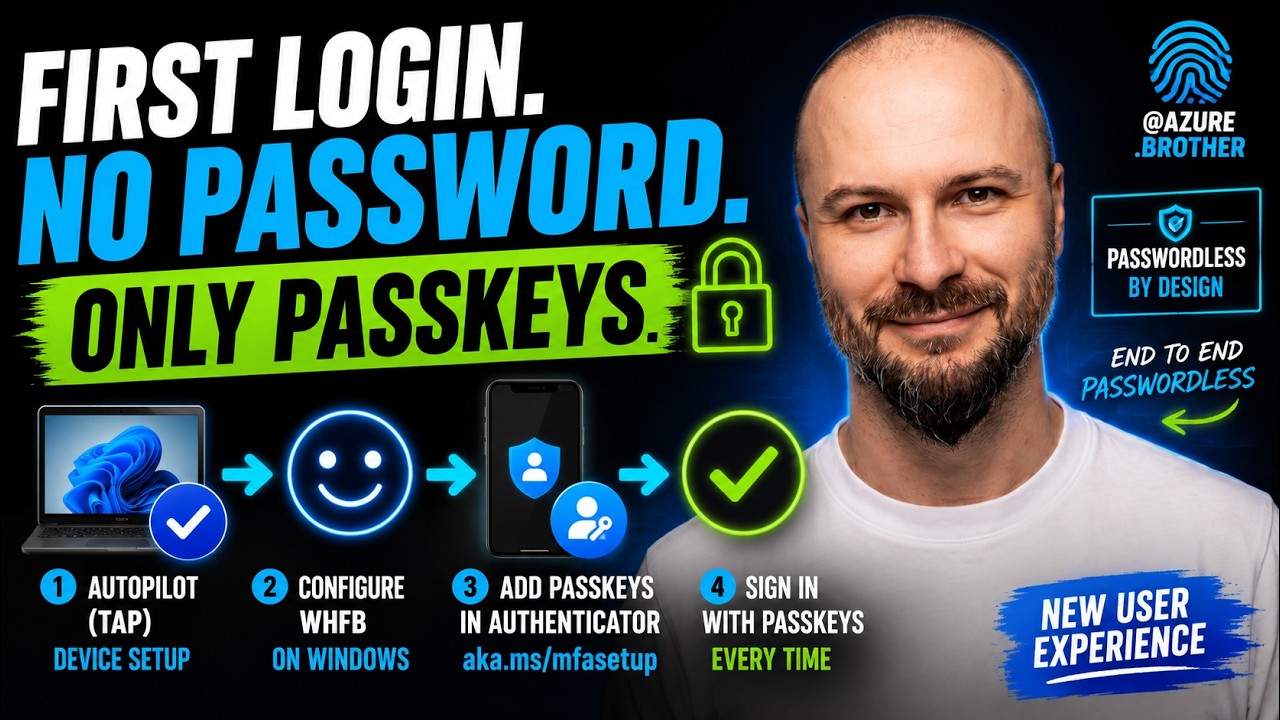
Many organizations are moving toward passwordless authentication, leveraging security keys (like YubiKeys) or the Microsoft Authenticator app to store Passkeys. But what does the day-one experience look like for a brand new employee if we never issue them a password?
In my latest video, I walk through the exact setup to achieve a 100% passwordless onboarding experience for a synchronized user.
If you prefer a visual walkthrough, you can watch the full video on the Azure Brother YouTube channel here:
Step 1: The Temporary Access Pass (TAP)
To get our new user (let’s call her Ellie) logged in without a password, we start in the Microsoft Entra portal.
By navigating to the Authentication methods blade for her account, we can add a Temporary Access Pass (TAP). We set the duration for 3 hours.
The beauty of the TAP is that it satisfies the Multi-Factor Authentication (MFA) claim during the login process, allowing us to bypass conditional access policies that enforce tenant-level MFA for new users who haven’t yet registered their security info.
Step 2: Windows Autopilot & The First Login
Ellie receives her company-issued Windows laptop, opens the lid, and connects to her home Wi-Fi. Immediately, she is greeted by the Windows Autopilot out-of-box experience (OOBE).
Here is where the magic happens:
- Ellie enters her User Principal Name (UPN).
- Instead of a password prompt, the screen explicitly asks her to enter her Temporary Access Pass.
- She checks her personal email, grabs the TAP, and signs in.
Because the TAP satisfies the MFA claim, she isn’t interrupted by secondary authentication prompts. Intune takes over, installing Windows updates, required applications, and security configurations.
⚠️ Important Autopilot Troubleshooting Warning
If you have any policies that cause a restart during the Enrollment Status Page (ESP) phase, you will not be able to use a Temporary Access Pass to log back in, because it defaults back to a standard login screen expecting a password.
These configurations often include:
- BitLocker configurations requiring a reboot
- Display lock or timeout policies assigned to devices rather than users
- Windows Defender settings
- Credential Guard configurations
Tracking down exactly which policy is triggering an unexpected mid-ESP reboot can be quite a complex troubleshooting task, so make sure to review your device-targeted configuration profiles thoroughly before rolling this out.
Step 3: Windows Hello for Business (WHfB)
Because the setup runs via Autopilot, the configuration natively prompts Ellie to set up Windows Hello for Business (WHfB). By setting up her PIN (and optionally biometrics), she is essentially generating a Passkey bound directly to this Entra-joined device.
We can verify this in a few ways:
- Locally via PowerShell: Running
dsregcmd /statusconfirms thatAzureAdJoinedis YES, the Primary Refresh Token (PRT) is present, andNgcSetis YES (confirming WHfB is active). - Entra Admin Center: Under Ellie’s authentication methods, we can now see the public version of the WHfB key.
- Intune Portal: The device registers as compliant and managed by MDM.
Step 4: Expanding to Microsoft Authenticator
With the laptop secured, Ellie navigates to the mysignins.microsoft.com portal to view her security info. The session utilizes SSO via the Edge profile configured during Autopilot.
She decides to add a new sign-in method: a Passkey.
If she attempts to save the Passkey directly to the Windows device, she’ll receive a prompt noting she already has one registered (thanks to our WHfB setup earlier). Instead, she selects the option to save the Passkey to the Microsoft Authenticator app on her smartphone.
Because her TAP is still active and satisfying the MFA requirement, she can complete this Authenticator setup seamlessly. She now has a passwordless sign-in method (number matching) and a Passkey housed on her mobile device.
Step 5: Cleaning Up
Back on the Security Info page, Ellie can now see:
- Her password (which she was never told and doesn’t know).
- Her Authenticator app Passkey.
- The TAP we generated earlier.
Since she is fully onboarded with hardware and mobile passwordless methods, the Temporary Access Pass can now be safely deleted.
The Dual-Passkey Strategy & What’s Next
So, why do we need both?
- The WHfB Passkey is bound to her corporate Windows machine. It’s what she uses to log into and operate her primary Entra-joined device.
- The Authenticator App Passkey is her key to the cloud from other devices. If she needs to check Teams or Outlook from a personal, unmanaged computer, she will use the Passkey saved on her phone.
Additionally, Microsoft recently announced that Windows Hello for Business and macOS Platform SSO are coming as standalone MFA factors (Message Center MC1450134). Soon, we will be able to natively incorporate them into Authentication Strength policies and sign-in frequency checks, making end-to-end passwordless architectures even more robust.
By combining TAP, Autopilot, and Passkeys, we can completely eliminate the credential gap that traditional passwords leave behind during onboarding.
If this technical deep dive was useful for you, let me know in the comments on YouTube. And remember, when it comes to Azure, you always got your brother in the cloud.